


Cloud to Cloud Migration
What Is Cloud Migration of Organization?
Cloud migration is the data transfer process of moving digital data from one cloud to another or from local to the cloud. It is not a physical packing and moving operation, but rather a non-physical migration of data, applications, and processes from one data center to another.In most cases, cloud migration refers to the transition from the local to the cloud. However, the term can also be applied to migration from one cloud to another.
What Is MultCloud?
As an international software company founded in 2012,nowMultCloud has created an award-winning software. It is a leading web service of cloud-to-cloud backup, transfer,sync, and file management. It allows users to quickly, securely, and easilytransfer data across clouds seamlessly without any risk of data loss.
MultCloud uses the OAuth authorization system to connect 30+ leading brands of cloud drives, FTP servers, WebDAV, and NAS without recording the username and password of these clouds. It allows direct transfer, sync, or backup of files from one cloud to another no matter for personal or business clouds. For example, you can transfer Google Photos to another account at once with a single click by using the Cloud Transfer function.
You can also manage cloud files from multiple clouds in a well-designed interface with useful cloud built-in functions like upload, download, preview, delete, rename, copy, cut, etc.
How to Migrate Data of Organization from Cloud to Cloud Using MultCloud
The traditional way for a company or organization to migrate data from one cloud to another is to download and package all the data as compressed files and then upload these huge sizes of files to another cloud manually.This way will possibly lead to an end in which all the data is intertwined without any order. Andyour company may have tospend so much time and effort on regrouping data since a business cloud always has lots of sub-accounts for all employees.
So, how to migrate business data from one cloud to another or from one domain to another efficiently without any possibility of disorder? A professional web-based cloud file manager, MultCloud is ready to give you some help. 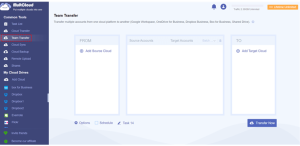
As is the latest issued function of MultCloud, the Team Transfer function allows companies and organizations to transfer data between cloud accounts peer-to-peer with a single click while requiring nothing like downloading or uploading. Until now, MultCloud has already supported the major business cloud storage services like Google Workspace, OneDrive for Business, Dropbox Business, Box for Business, etc.
To easily achieve cloud to cloud migration of your organization, all you have to do is to add the admin cloud account of your organization to MultCloud and use the Team Transfer function to quickly migrate data from source to target cloud immediately with the help of auto-matching. Here are the detailed steps of how to migrate your organization’s data between clouds.
Step 1. Sign up MultCloud on the web browser. Or, MultCloud allows you to have a try with a temp account by clicking “Try without signing up”. 
Step 2. Choose a business cloud below and enter your organization’s admin account to allow MultCloud to access your account. You can repeat this step to add another cloud to MultCloud. (Let’s take adding Google Workspace as an example). 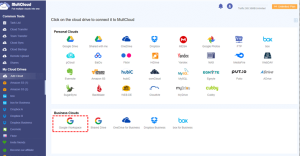
Step 3. Switch to the “Team Transfer” page from the “Common Tools” list in the left.
Step 4. Choose the source and target clouds in the “From” and “TO” areas.
Step 5. Click the “Batch Match” button and choose a way in the dropdown menu to match the source and target accounts peer-to-peer.
Step 6. Click “Transfer Now” below and MultCloud will immediately migrate data from the source to the target one by one.
Tips:
- Auto-Match:Automatically match sub-accounts with the exact same account name and domain name in the source and target cloud.
- Upload CSV:Open the pop-up window to select the CSV file you want to upload. (MultCloud will show you a format CSV file.)
- Download CSV:If the sub-accountsare already matched, you candownload the CSV file of the current successfully matched sub-account matching group.
In the End
Except for the helpful Team Transfer function, MultCloud also offers some additional tools to make your cloud migration more convenient. Before starting to migrate, the “File Filter”, “Email Notification”, the choice of “Delete all source files after transfer is complete.”, and the daily, weekly, monthly schedule plans are all worth trying.
